

Structuring Tests
There are several ways to structure your tests:
- Projects - separate environments within the same organisation
- Folder structure - nested folders in the test list
- Collections - group tests to run together
Projects
Section titled “Projects”Projects are separate environments within the same organisation. Each project starts with a clean slate - no secrets, variables, or modules are carried over from other projects.
Use projects to isolate distinct applications or teams that should not share configuration.

Folder structure
Section titled “Folder structure”Tests are organised in a nested folder tree. Folders can be created when adding a new test case, and tests can be moved between folders at any time.
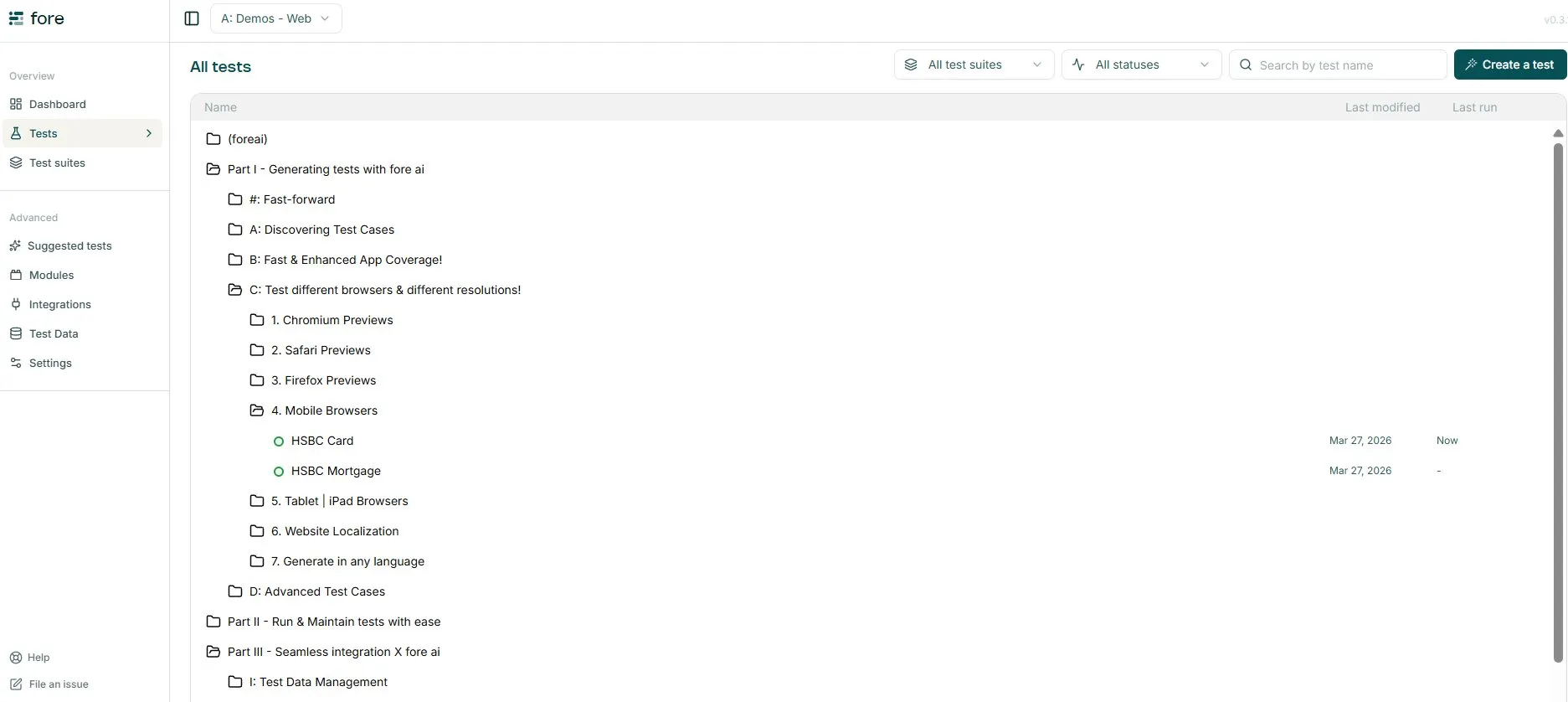
Moving a test
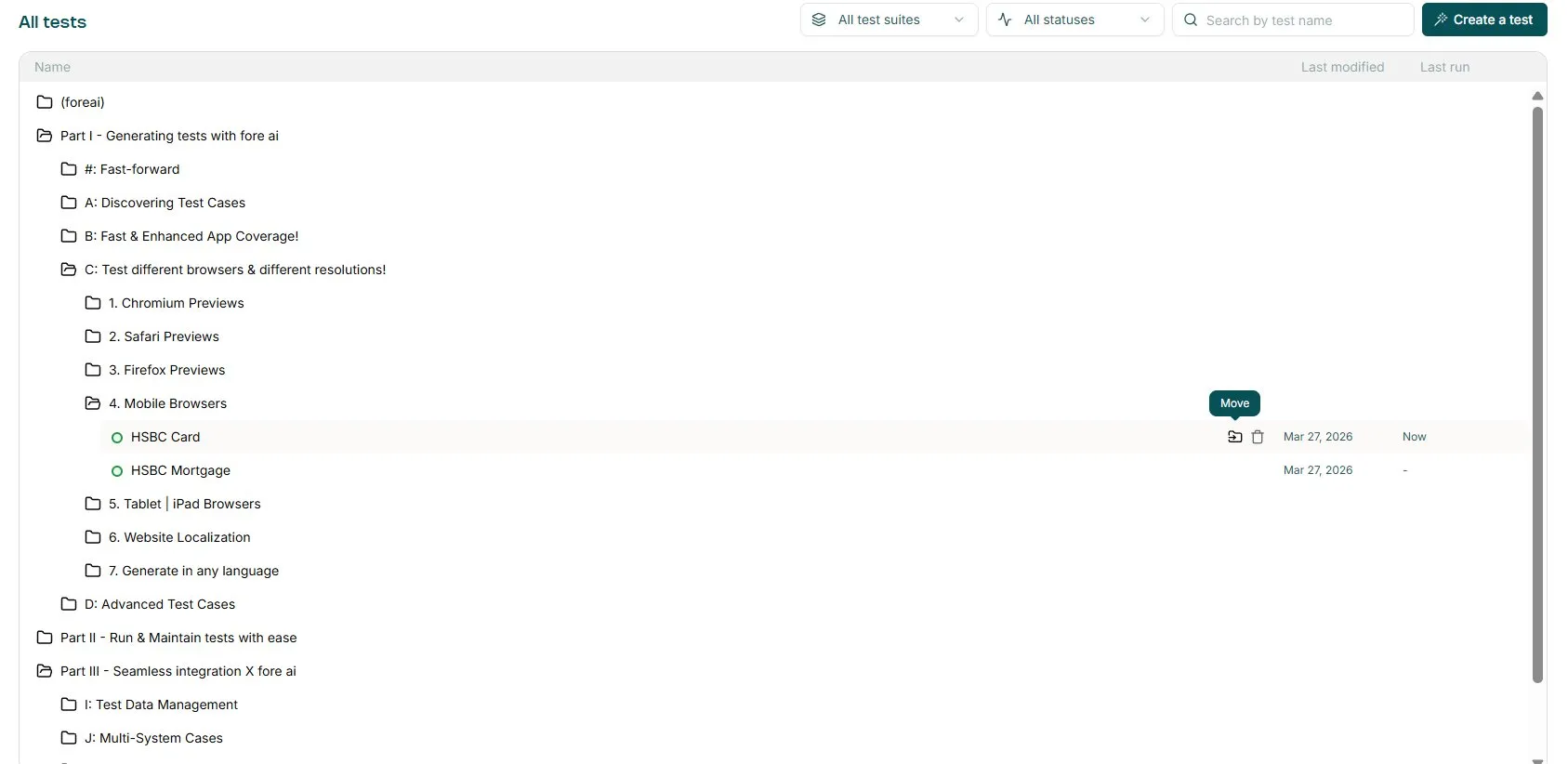
Section titled “Moving a test”There are two ways to move a test to a different folder:
From the test list - hover over a test row to reveal the action icons, then click Move.
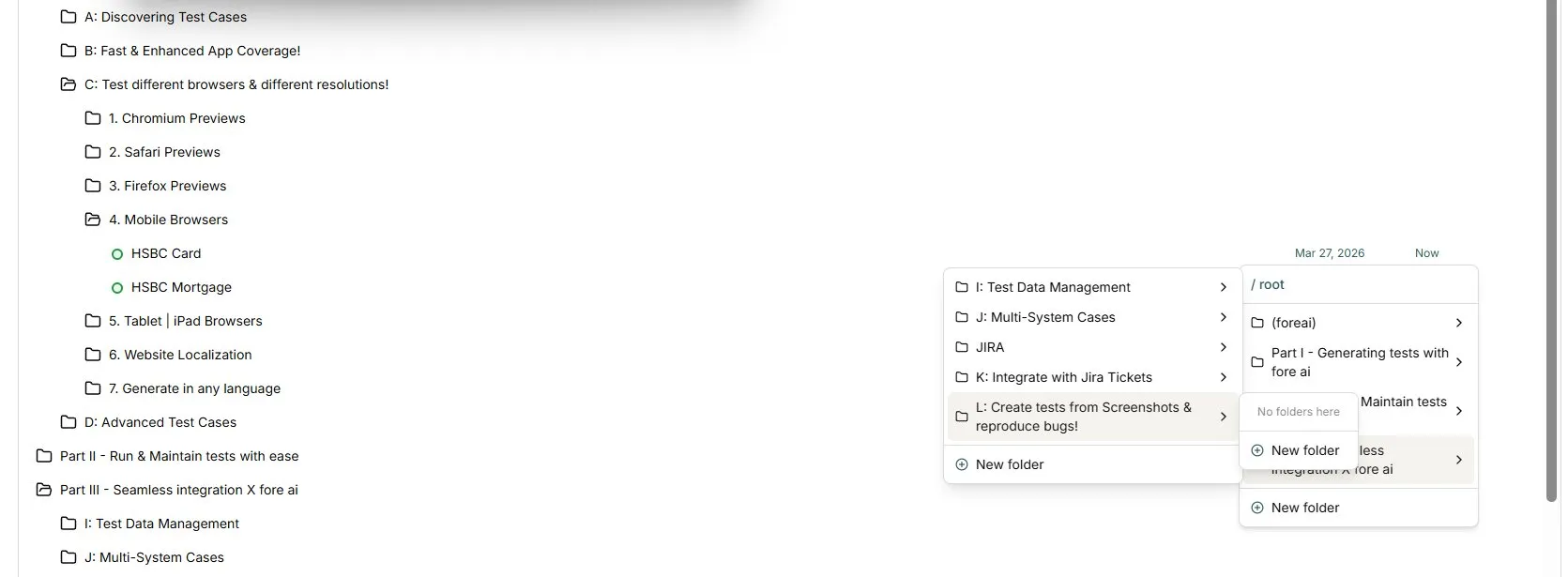
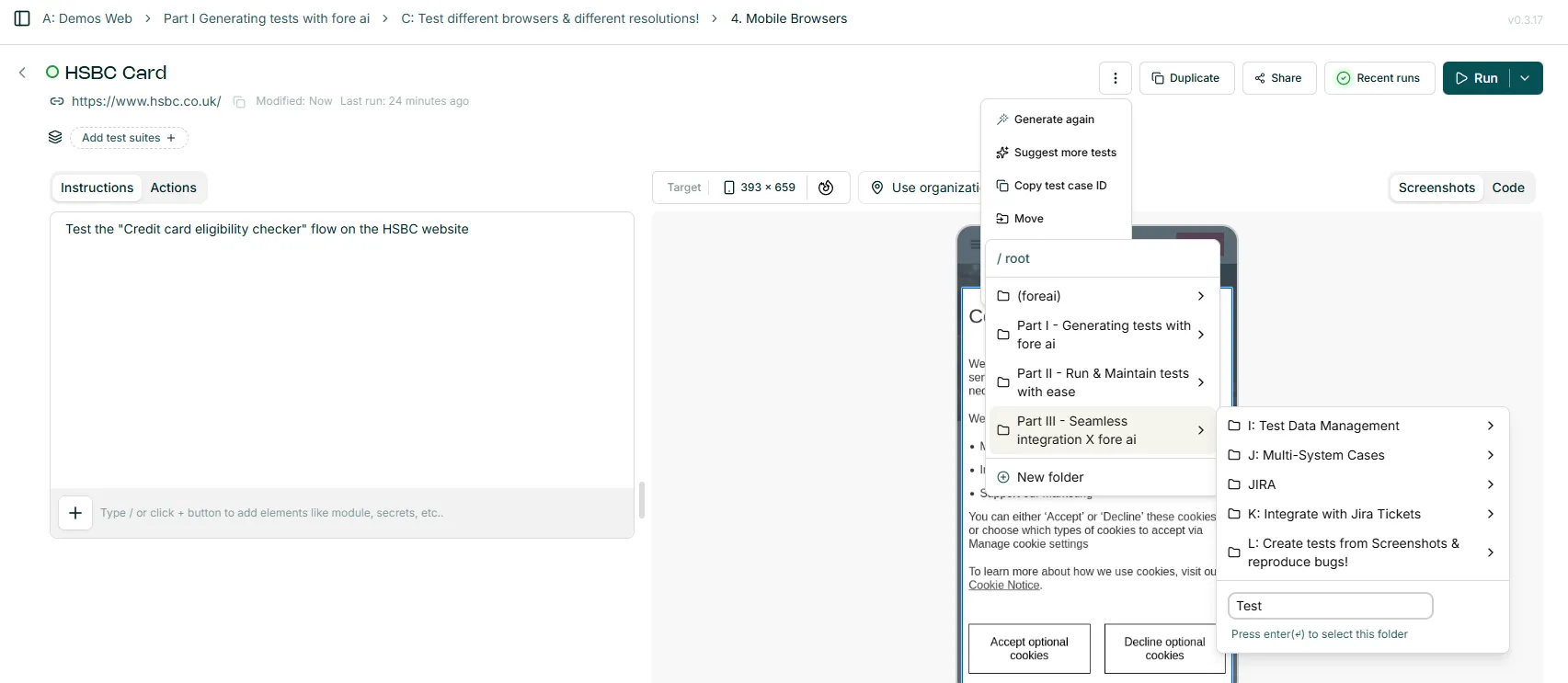
A folder picker opens. Navigate the hierarchy and select the destination folder, or create a new one.
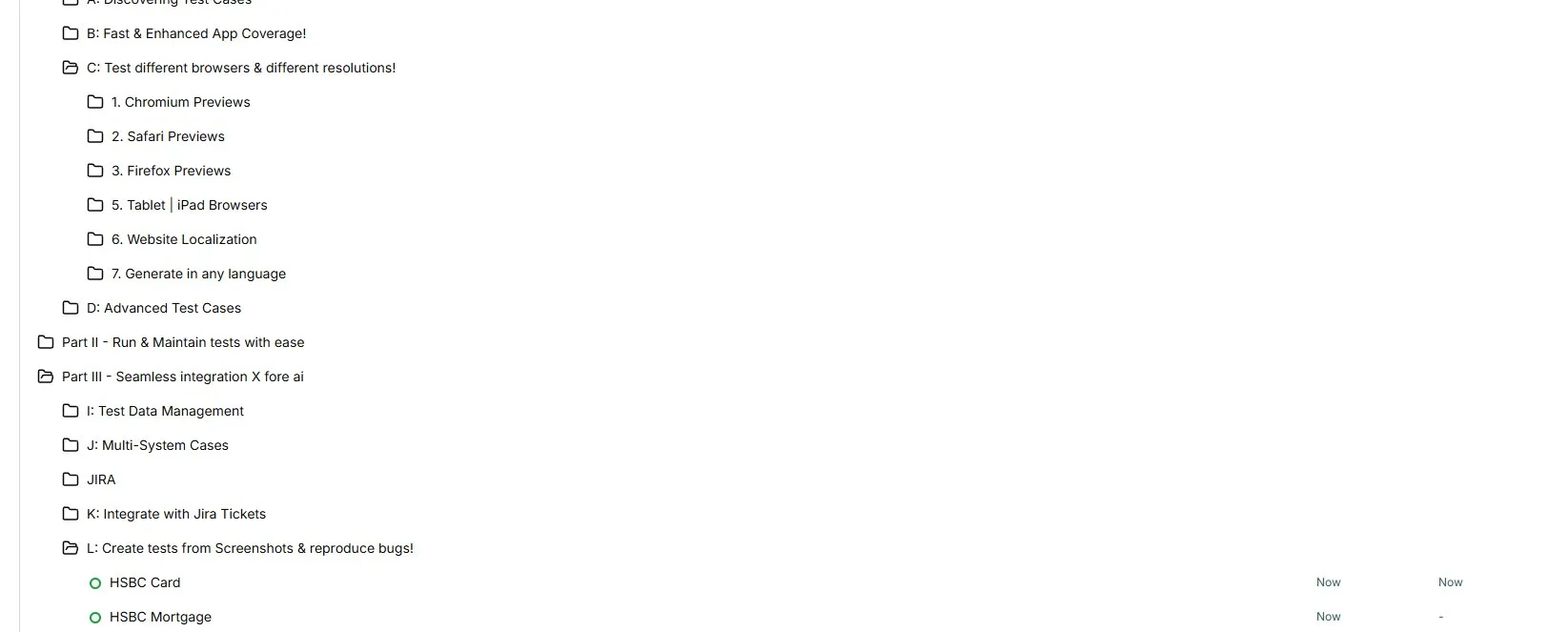
A confirmation toast appears once the move is complete.

The test now appears in its new location in the folder tree.
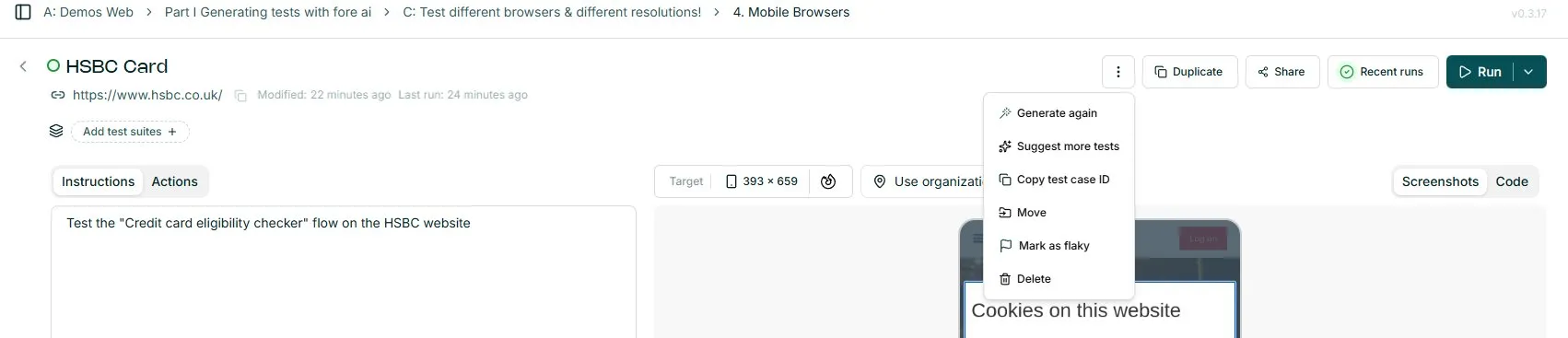
Alternatively: From the test case details page - open the “…” menu in the top-right and select Move.
Collections
Section titled “Collections”Collections allow you to group tests and execute them together.
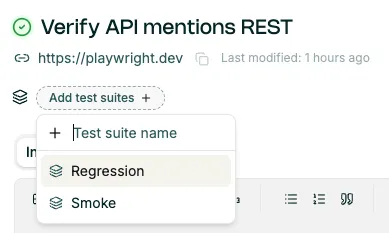
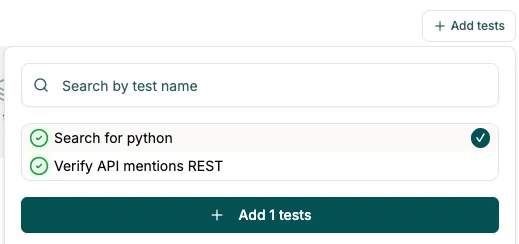
A test can be added to a collection via two ways:
- On the test case details page, click the
Add collections +button below the test name and URL.
- Go the collections panel on the side bar, click
+ Create collection.
See Collections for more details on running collections.