

Teams notification setup
Follow these steps to connect a Microsoft Teams channel to Klarent so you receive run failure alerts directly in Teams.
1. Open notification settings
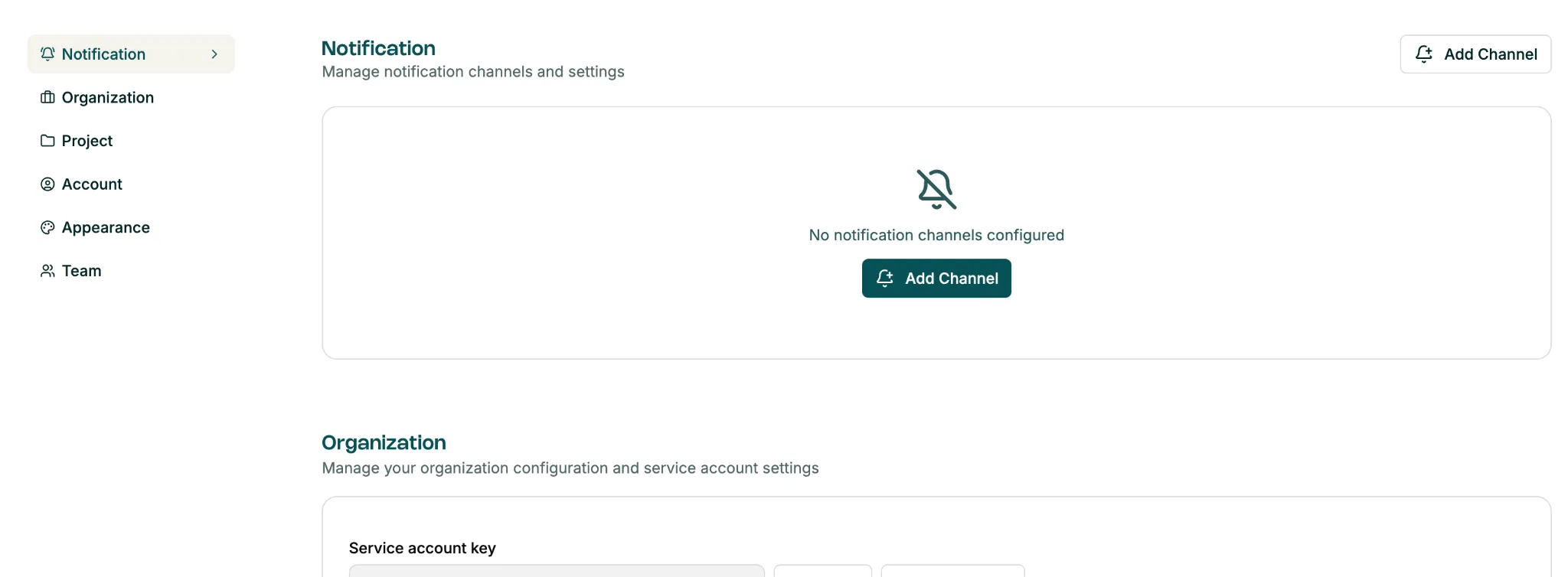
Section titled “1. Open notification settings”In Klarent, go to Settings → Notification. Click “Add Channel” to begin.
2. Create a new teams channel
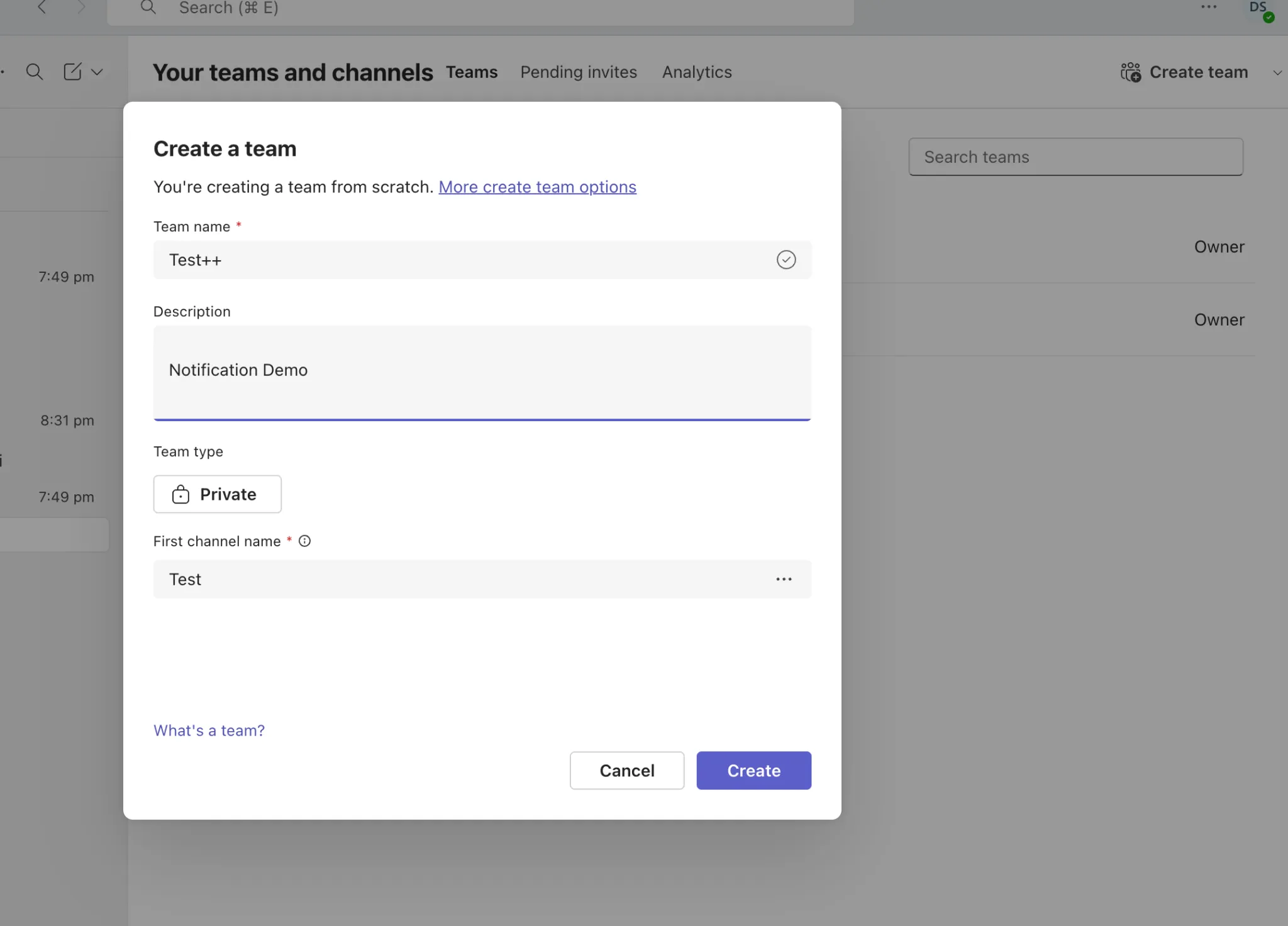
Section titled “2. Create a new teams channel”In Microsoft Teams, create a dedicated channel for notifications. Give it a clear name (e.g. klarent-alerts), set the team type to Private, and click “Create”.
3. Open workflows for the channel
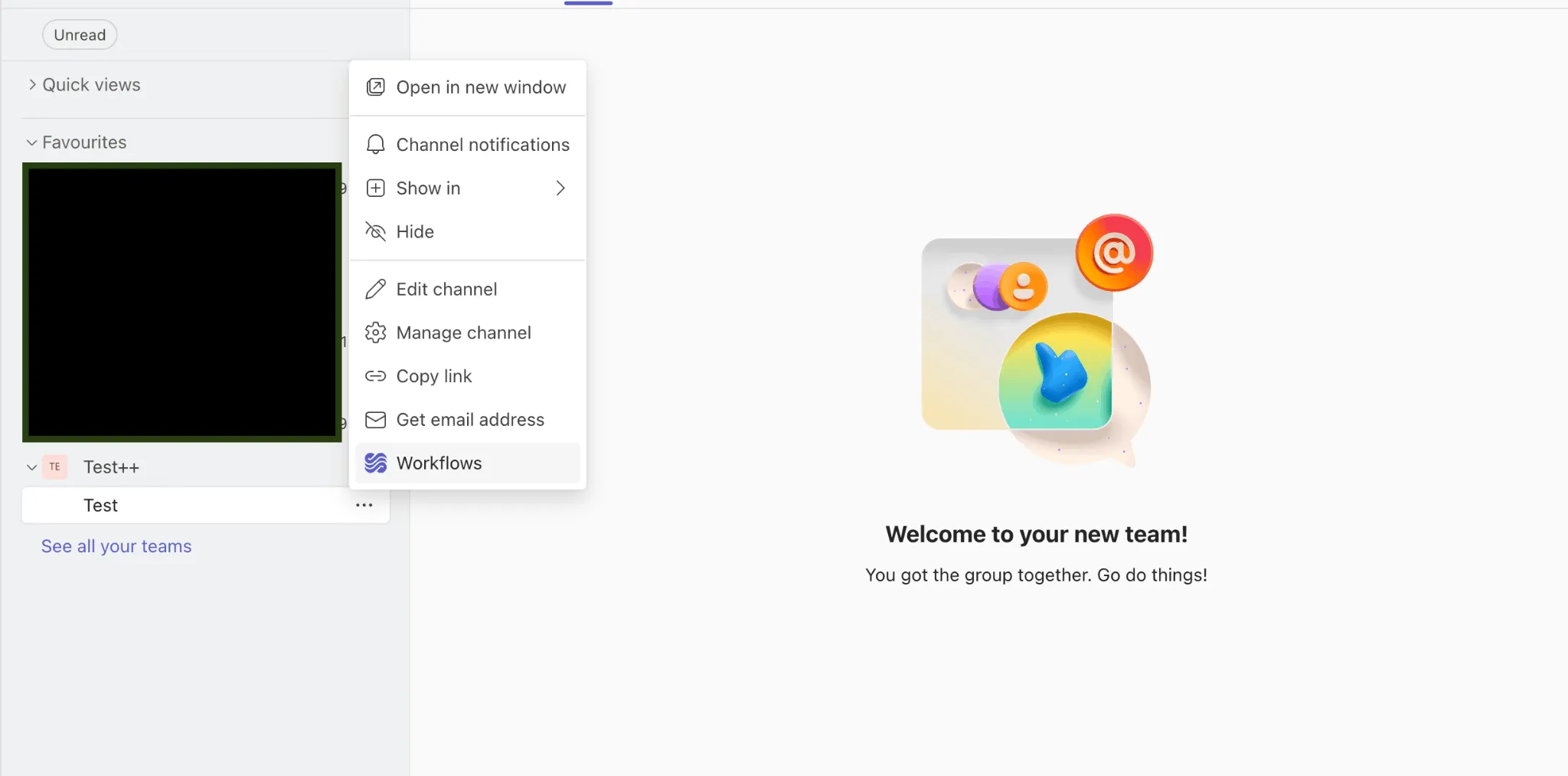
Section titled “3. Open workflows for the channel”Right-click (or click “…”) on the channel name in the Teams sidebar and select “Workflows” from the context menu.
4. Find the webhook template
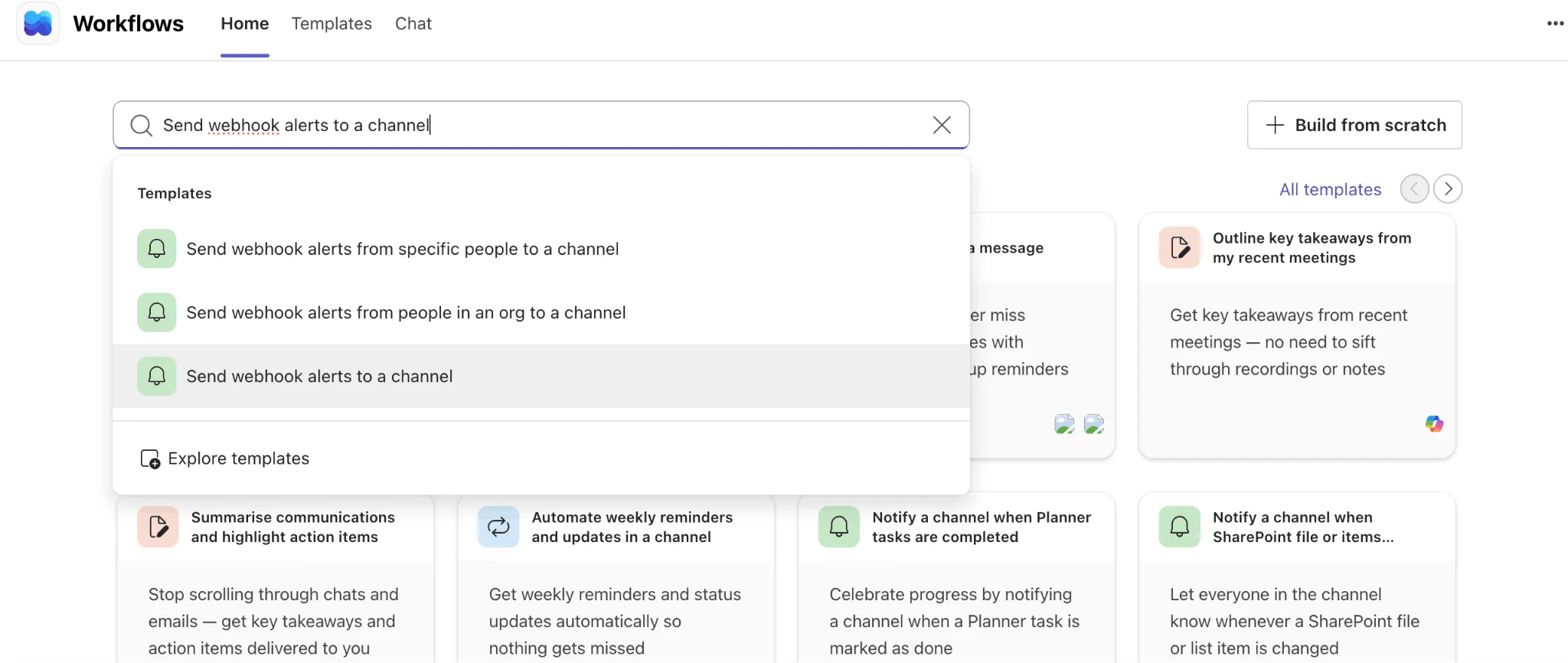
Section titled “4. Find the webhook template”In the Workflows panel, search for “Send webhook alerts to a channel” and select that template from the results.
5. Configure and save the workflow
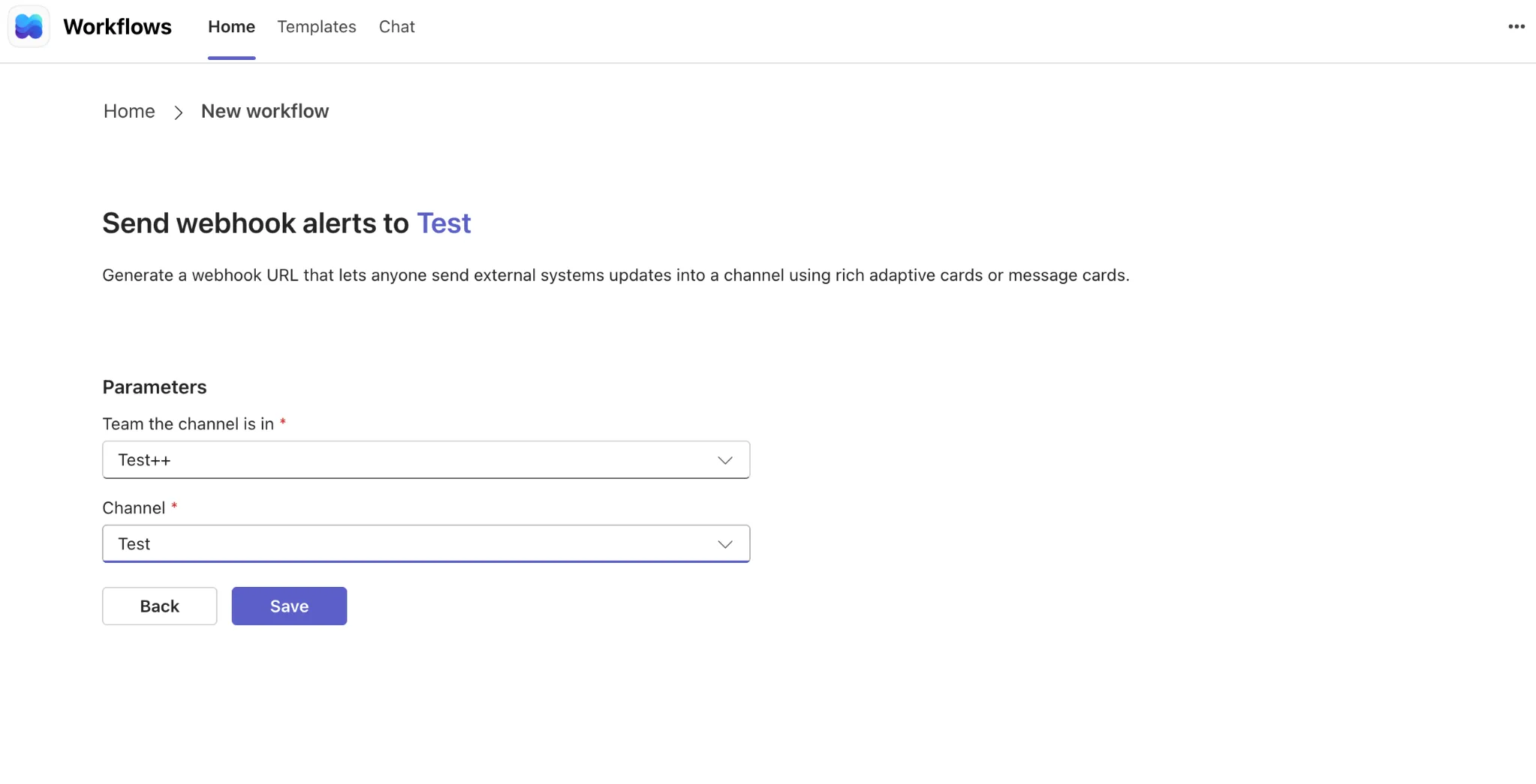
Section titled “5. Configure and save the workflow”Select the team and channel you just created from the dropdowns, then click “Save”.
6. Copy the webhook URL
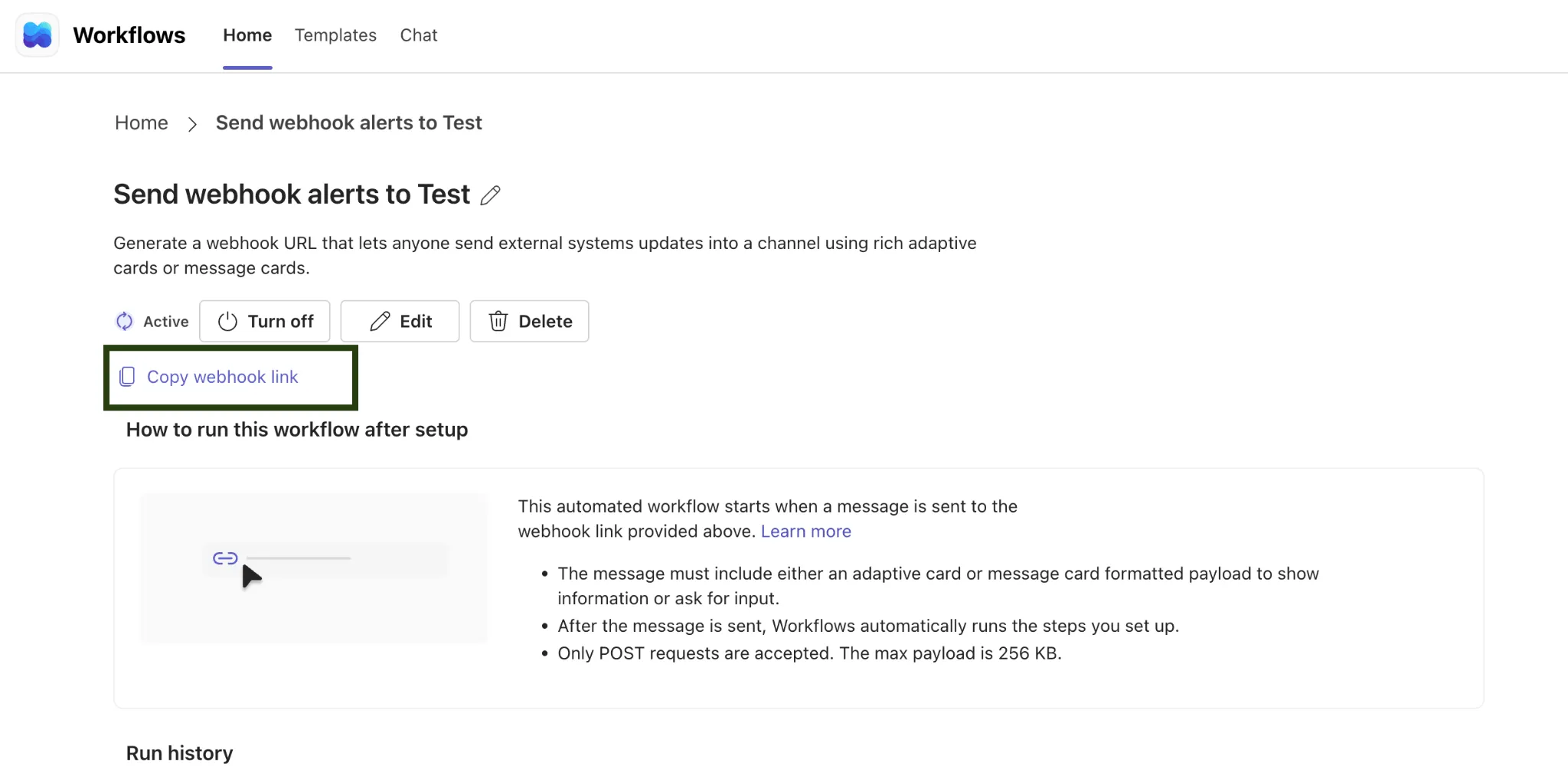
Section titled “6. Copy the webhook URL”Once the workflow is active, click “Copy webhook link”. Keep this URL safe - you’ll need it in the next step.
7. Add the channel in Klarent
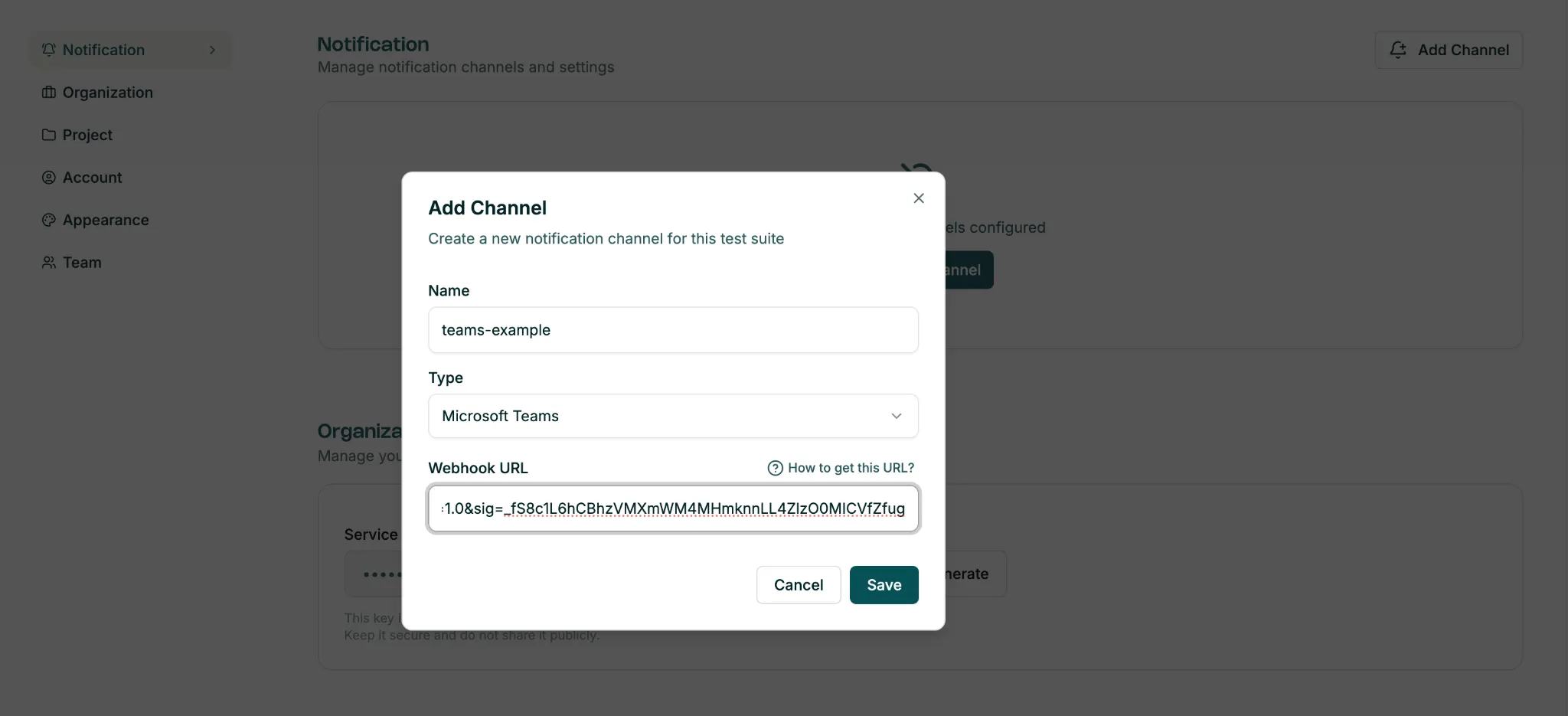
Section titled “7. Add the channel in Klarent”Back in Klarent, click “Add Channel”. Enter a name, select “Microsoft Teams” as the type, paste the webhook URL, then click “Save”.
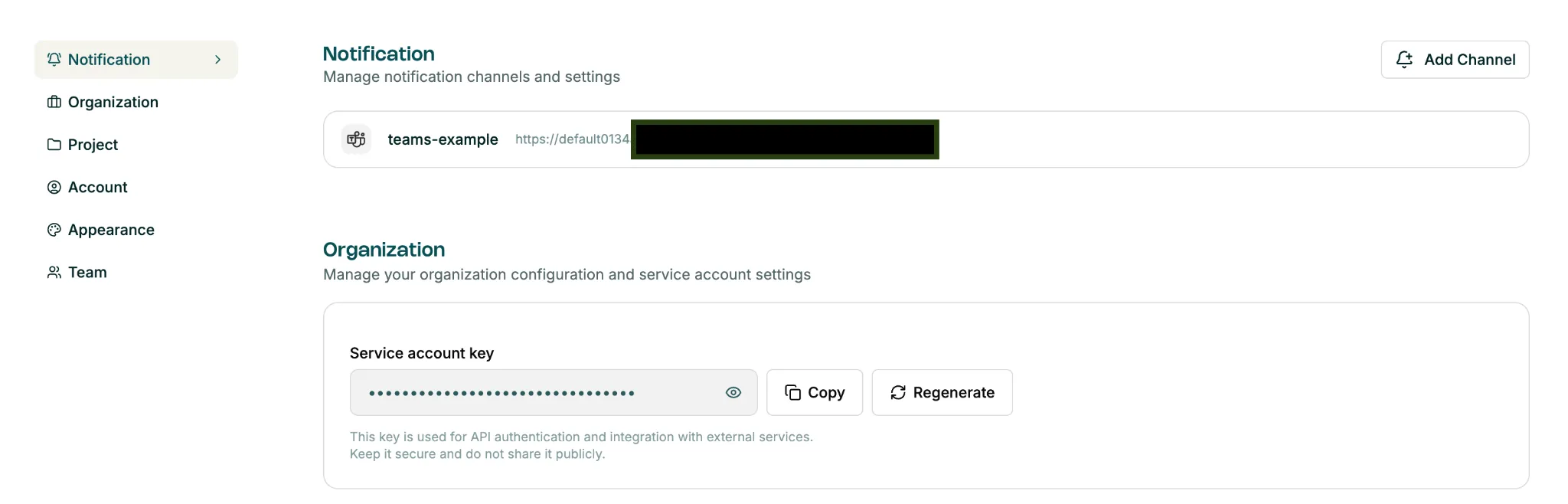
Channel Saved : Setup complete
Section titled “Channel Saved : Setup complete”The Teams channel now appears in your Klarent Notification settings. The integration is ready to use.
8.Enable notifications per test suite
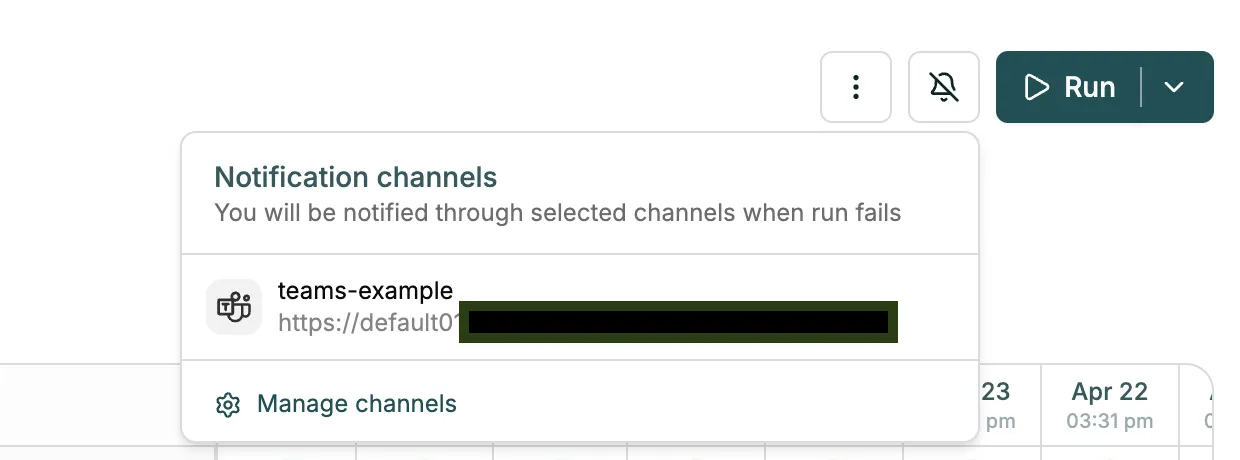
Section titled “8.Enable notifications per test suite”Notifications are off by default for every test suite. To enable them, open a test suite and click the bell icon in the top-right toolbar.

9.Select the teams channel
Section titled “9.Select the teams channel”A “Notification channels” popover lists all configured channels. Click the Teams channel to select it.
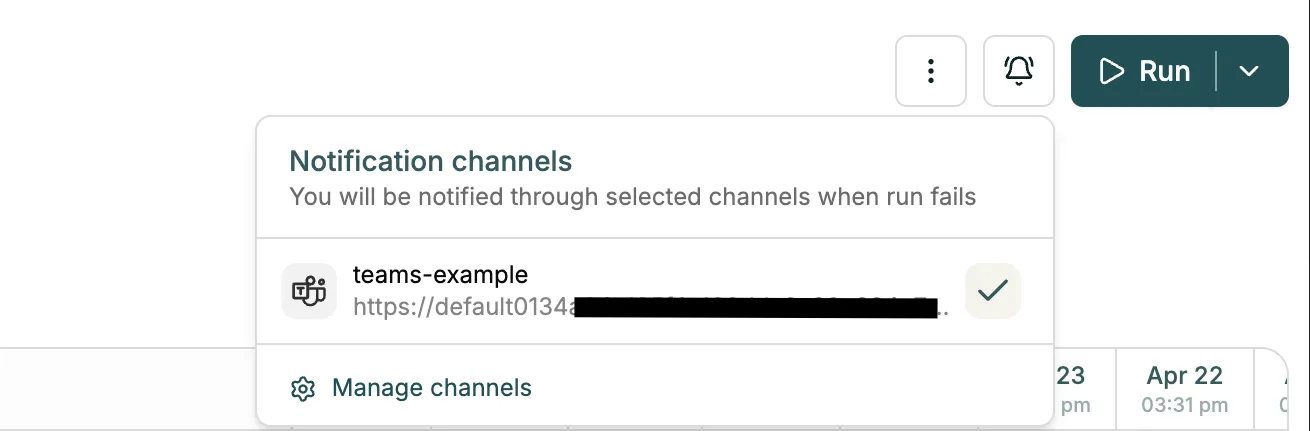
Done : Notifications active
Section titled “Done : Notifications active”A checkmark confirms the channel is active for this test suite. Klarent will now post a Teams message whenever a run fails.
Additional reference
Section titled “Additional reference”Microsoft documentation for creating incoming webhooks with Workflows in Teams: