

Test creation
Start creating tests by clicking the Create a test button in the Tests tab and filling in the testcase information.
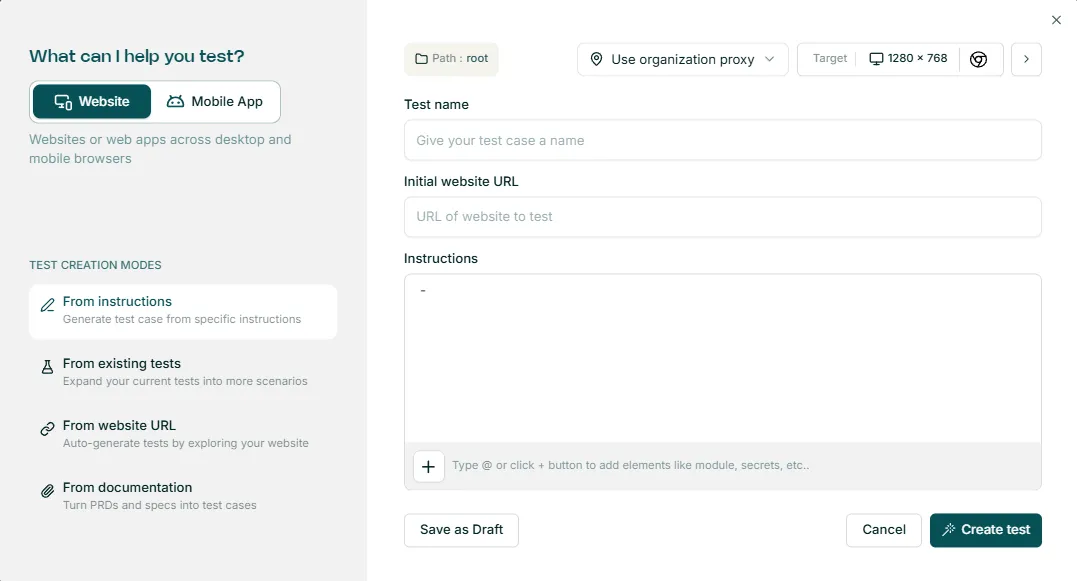
Basic fields
Section titled “Basic fields”| Field | Value |
|---|---|
| Test name | any string |
| Initial website URL | initial URL to open as a first step |
| Instructions | what should testcase do and verify |
Best practices for writing instructions
Section titled “Best practices for writing instructions”- Imagine guiding an experienced tester who just joined your team and doesn’t know your product very well
- Avoid ambiguities like
verify the content - Be explicit on what should happen, but also what should NOT happen
- e.g.
do NOT click the SUBMIT button at the end.
- e.g.
Options
Section titled “Options”Use the big + button below the instructions text to add test case options.
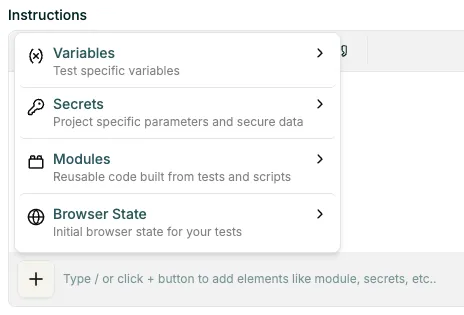
| Option | Value |
|---|---|
| Variables | Local variables, used only in this test case |
| Secrets | Project-wide secrets, like usernames / passwords, defined in Secrets |
| Modules | Module (reusable code) to execute before the test steps - see Modules |
| Browser state | Use browser state - contact us to set up one |
For secrets and variables, use e.g. @username to refer to them in testcase instructions.
Click Create test to save and generate the testcase using AI models.
Use Save as Draft if you just want to save and trigger the test generation later.
Test generation
Section titled “Test generation”See more in Generating Tests Guide.