

Email notification setup
Follow these steps to connect an email channel to Klarent so you receive run failure alerts by email.
1. Open notification settings
Section titled “1. Open notification settings”In Klarent, go to Settings → Notification. Click “Add Channel” to begin.
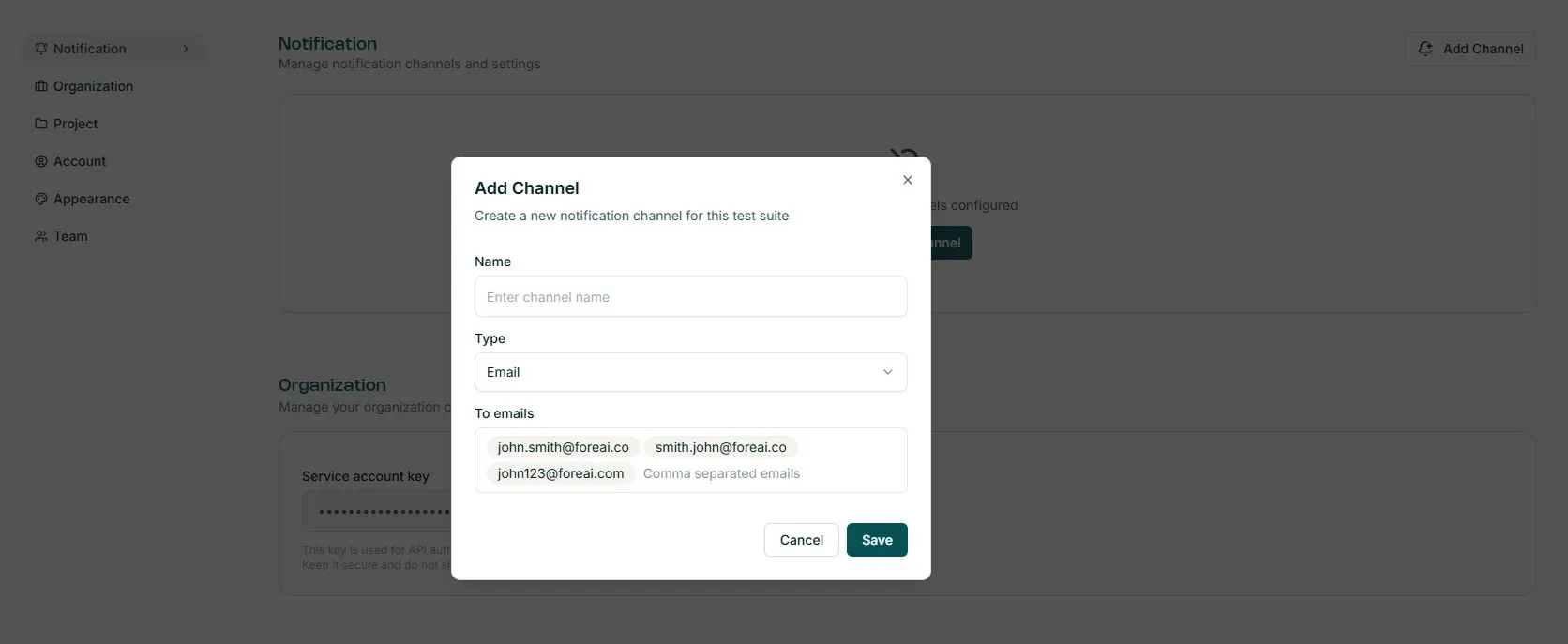
The Add Channel modal opens. Enter a name for the channel, then select “Email” from the Type dropdown.
2. Enter recipient addresses
Section titled “2. Enter recipient addresses”In the To emails field, enter one or more email addresses separated by commas. Addresses are shown as tags as you add them.
3. Save the channel
Section titled “3. Save the channel”Click “Save”. The email channel now appears in your Notification settings and is ready to use.
4. Enable notifications per test suite
Section titled “4. Enable notifications per test suite”Notifications are off by default for every test suite. To enable them, open a test suite and click the bell icon in the top-right toolbar. A “Notification channels” popover lists all configured channels - click the email channel to select it.

Done : Notifications active
Section titled “Done : Notifications active”A checkmark confirms the channel is active for this test suite. Klarent will now send an email whenever a run fails.
