Communication platform integrations
Test failure alerts in Slack, Teams and email
A failing test only matters if the right person sees it. Klarent posts test failure alerts and run summaries into the channels your team already watches, with a link straight to the evidence.
Why test results get missed
Why failures sit unread
Testing tools go unopened
Between releases, nobody checks a dashboard they have no reason to visit.
Someone has to notice the run finished
If a person has to remember to look, a failed run can wait hours before anyone sees it.
Alerts arrive without detail
A bare "tests failed" message sends engineers hunting for the cause before they can start on the fix.
Noisy channels bury real failures
When every run posts to the same place, the failure that matters scrolls past with the rest.
What gets sent
Test failure alerts built for triage
The failures, named
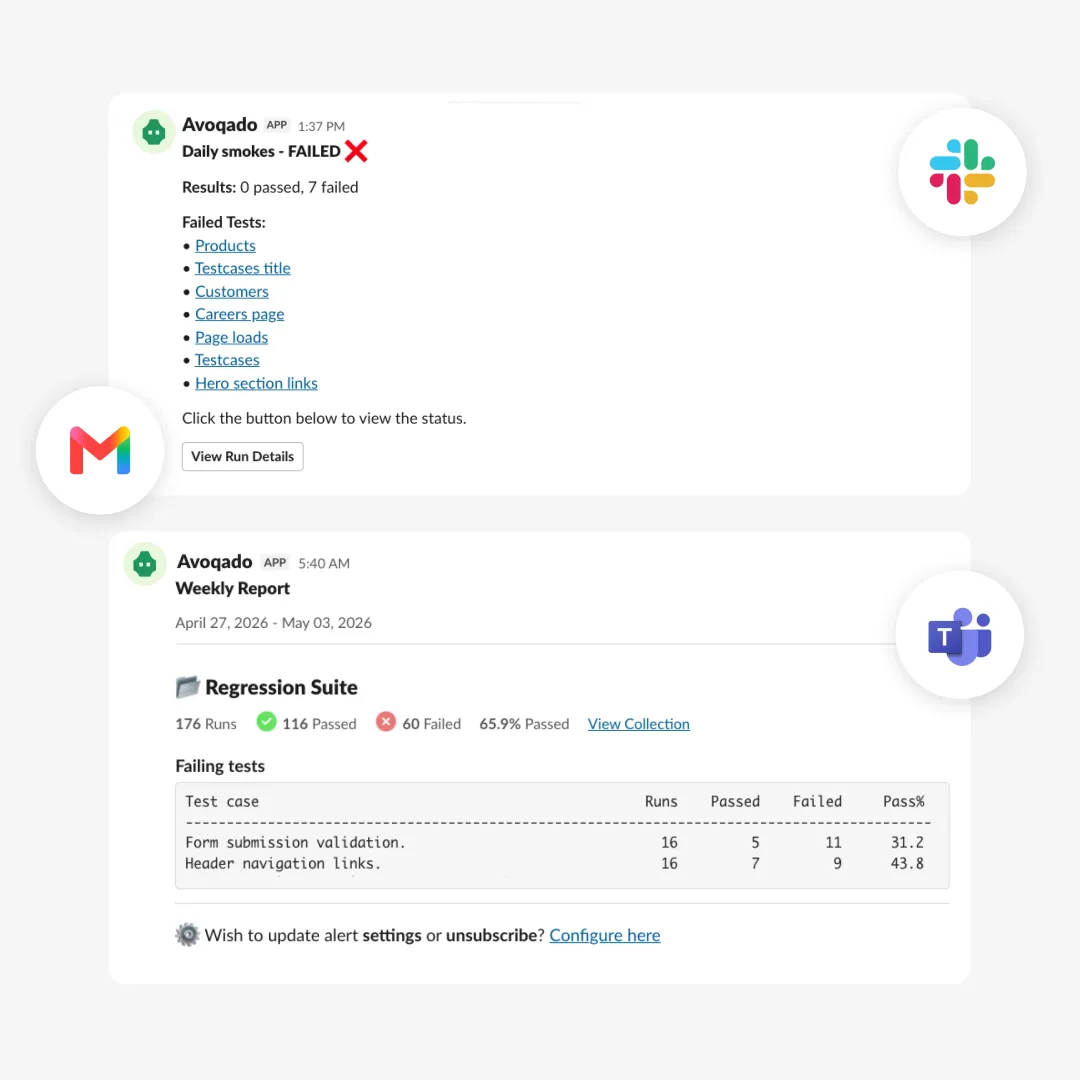
Each alert lists the tests that failed, so the team knows what broke before opening anything.
A run summary
Which tests ran and how many passed and failed, in one message.
A link to the run evidence
One click opens the failure in Klarent, with step traces and screenshots.
How the integration works
Connect, route, respond
Connect
Add a notification channel under Settings: a Slack or Teams webhook, or email recipients.
Route
Switch the channel on for each suite, so the right team hears about the right tests.
Respond
When a run fails, the alert lands in the channel. One click opens the failing step in Klarent.
Supported communication platforms
Alerts where your team already works
Each channel type has a short setup guide. Pick yours to see the steps.
 SlackPosts to a Slack channel through an incoming webhook
 Microsoft TeamsPosts to a Teams channel through a workflow webhook
 EmailSends alerts to one or more addresses
Using Google Chat? The GitHub Actions integration can post to it through a webhook in your workflow file.
Keeping alerts worth reading
Send fewer alerts, and the right ones
Failures, not every pass
Alerts fire when a run fails, so a green build stays quiet and a red one stands out.
Switched on per suite
Notifications are off by default. Enable them only for the suites that deserve an interruption.
Different suites, different channels
Mix channels on the same suite, or give each team its own dedicated alerts channel.
Enterprise considerations
Control who sees test results
Private channels
Post to a private channel, so results are visible only to the people who need them.
Access control
Granular role-based access and audit logs govern who can configure channels and view runs in Klarent.
A short, predictable message
Alerts carry a run summary and a link. The detail stays in Klarent, behind your access controls.
Connect a channel and watch your next run appear in it.
Add a Slack, Teams or email channel, switch it on for a suite, and see the next failed run show up where your team already looks.
FAQs
Klarent sends test run notifications to Slack, Microsoft Teams and email. Slack and Teams channels are connected with an incoming webhook. If your team uses Google Chat, the GitHub Actions integration can post to it through a webhook in your workflow file.
Each alert summarises the run: which tests ran, how many passed and failed, and which ones failed. It includes a direct link back to Klarent, where you can open the failing step with its trace and screenshot.
Yes. A notification channel is set up once for the organisation, then switched on for each collection of tests. Point the checkout suite at one channel and the onboarding suite at another, or send the same suite to several channels at once.
Klarent only alerts on failed runs, and only for the suites you have switched on. Give critical suites their own channel so a noisy suite does not bury the failures that matter.
Klarent alerts when a collection run fails. If you want a recurring digest, talk to the team about how to set one up for your workflow.
Yes. An email channel takes one or more recipient addresses, so failure alerts can reach people who are not in your Slack or Teams workspace.
For Slack you need to be able to add an incoming webhook to a channel in your workspace. For Teams you need to create a workflow on a channel using the "Send webhook alerts to a channel" template. Email only needs recipient addresses. Adding the channel in Klarent happens under Settings, then Notification.